
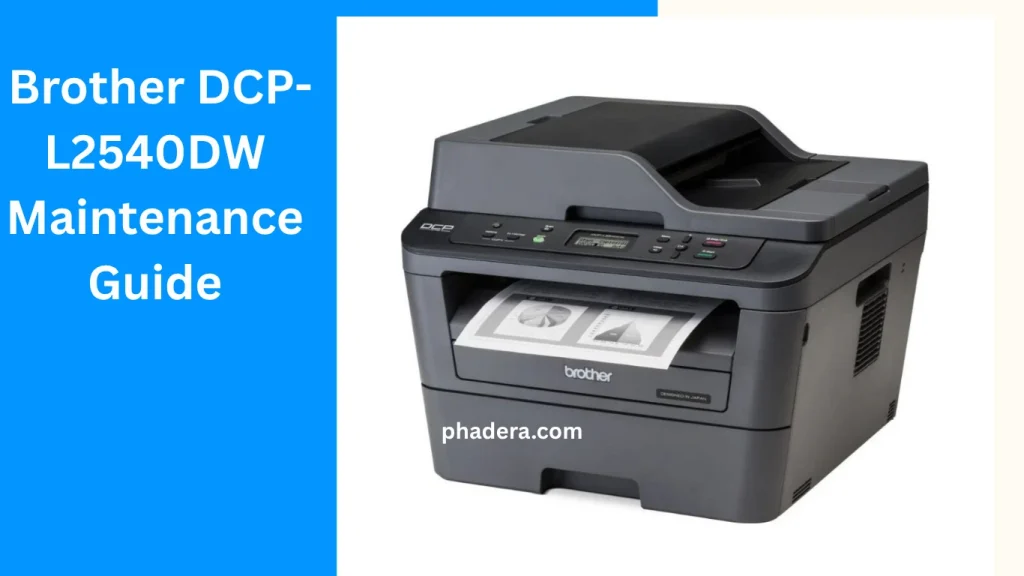
This Brother DCP-L2540DW Maintenance Guide is designed to help you keep your monochrome laser printer running at peak performance. Whether you need to refill your TN660 toner, reset the drum life counter, or download the latest drivers, this step-by-step guide covers everything you need to know to save money and extend your printer’s lifespan.
Here is how you can master this machine and save money on consumables.
1. How to Refill the TN660 Toner Cartridge
While Brother recommends buying new cartridges, refilling is a cost-effective alternative.
Preparation:
- Refill Kit: High-quality Brother-compatible monochrome toner powder.
- Tools: A small flat-head screwdriver and a pair of gloves.
Steps:
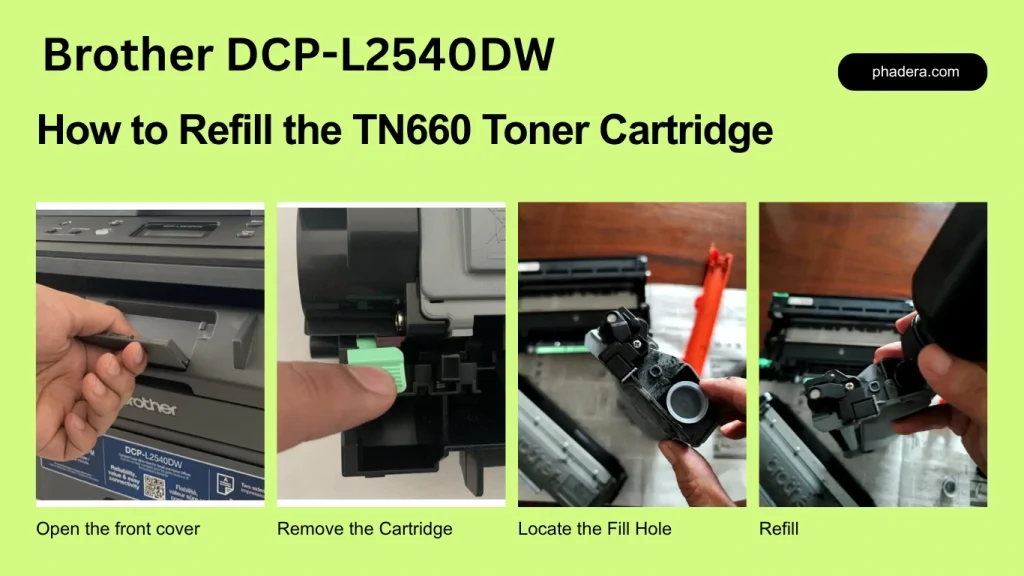
- Remove the Cartridge: Open the front cover, pull out the drum unit, and press the green lever to release the toner cartridge.
- Locate the Fill Hole: On the side of the cartridge, there is a round plastic cap (plug).
- Clean Old Toner: Use a vacuum or shake out the old waste toner. Crucial: Never mix different types of toner.
- Refill: Carefully pour the new toner powder into the hole. Replace the plug firmly.
- Reset the Gear: Most “starter” cartridges lack a reset gear. If you are refilling a standard TN660, ensure the reset gear is rotated back to the “start” position.
2. Steps to Follow: Brother DCP-L2540DW Maintenance Guide (No Gear Required)
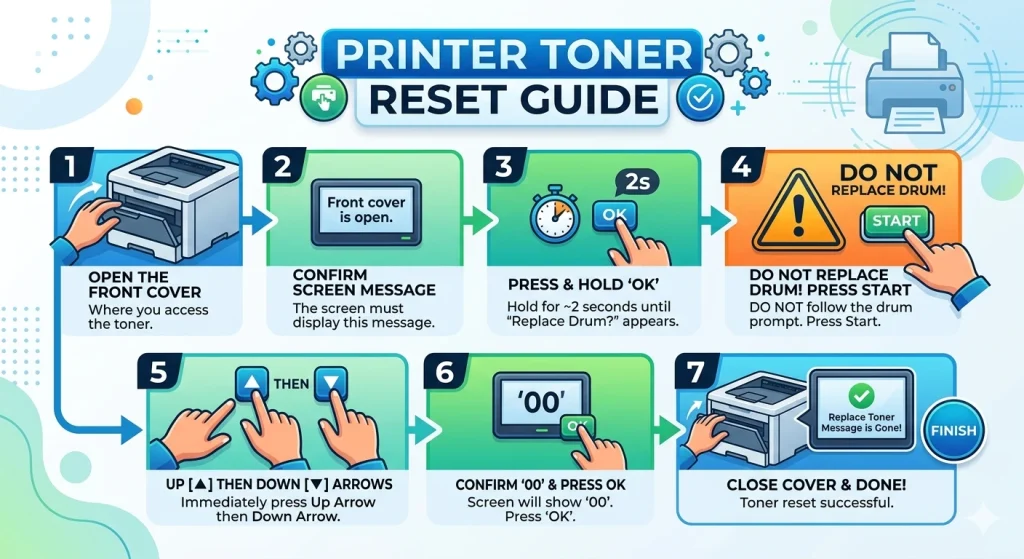
If you refilled your toner but the printer still says “Replace Toner,” use this digital bypass:
- Open the front cover of the printer (where you access the toner).
- The screen should say “Front cover is open.”
- Press and Hold the ‘OK’ button for about 2 seconds until “Replace Drum?” appears.
- DO NOT follow the prompt for the drum. Instead, press the Start button.
- Immediately press the Up Arrow [▲] then the Down Arrow [▼].
- The screen will show ’00’. Press ‘OK’.
- Close the front cover. The “Replace Toner” message is now gone!
Note: Proper execution of this Brother DCP-L2540DW Maintenance Guide ensures that your printer warranty remains valid while you save on maintenance costs.
3. Resetting the Drum on Brother DCP-L2540DW
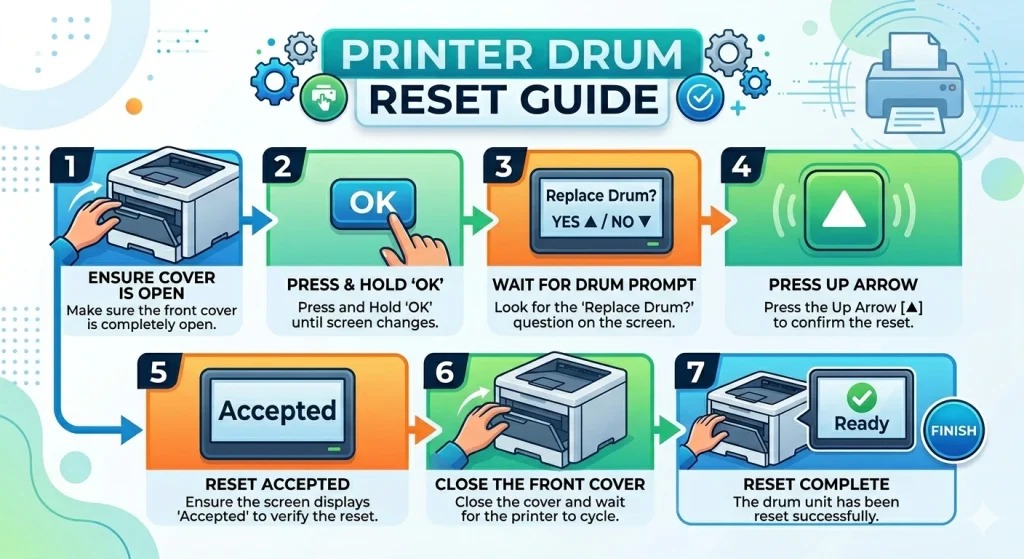
The drum unit (the big tray holding the toner) has a lifespan of about 12,000 pages. If your prints are still clear but the “Replace Drum” light is on, reset it:
- Make sure the front cover is open.
- Press and Hold ‘OK’ until the screen asks “Replace Drum?”.
- Press the Up Arrow [▲] to confirm the reset.
- The screen should say “Accepted.”
- Close the front cover.
As mentioned earlier in this Brother DCP-L2540DW Maintenance Guide, resetting the counter is just as important as refilling the powder.
4. Why the Brother DCP-L2540DW is a Tech Favorite
As a hardware expert, here is why we recommend this specific model at Phadera.com:
The Pros (Benefits):
- Automatic Duplexing: It prints on both sides of the paper automatically, saving 50% on paper costs.
- High Yield: With a TN660 high-yield cartridge, you get up to 2,600 pages per refill.
- Fast ADF: The 35-sheet Auto Document Feeder makes scanning multi-page documents a breeze.
- Wireless Printing: Supports AirPrint, Google Cloud Print, and Wi-Fi Direct.
- Durability: Unlike inkjet printers, the nozzle doesn’t “dry up” if you don’t use it for a month.
Brother DCP-L2540DW Driver Support
Ensure your Brother DCP-L2540DW printer operates at peak performance by downloading the official drivers and software.
Quick Installation Steps:
- Select Package: We recommend downloading the “Full Driver & Software Package“ for complete functionality.
- Connection: Verify that your printer is powered on and connected via USB or Wi-Fi.
- Run Setup: Open the downloaded installer and follow the step-by-step on-screen instructions.
Market Price Brother DCP-L2540DW
Brother DCP-L2540DW Price Guide
UPDATEDAvailable at major tech stores like Hukut and Max Nepal.
Listed on IndiaMART and local retail outlets.
Mainly Refurbished/Used units on eBay or Newegg.
*Prices are approximate and subject to change based on local dealer stock and warranty. Visit phadera.com for more updates.
How to Buy: A Step-by-Step Guide
- Check Stock Availability:
- In Nepal, verify stock with physical stores in tech hubs or through their official websites to get the best local price, typically around NPR 34,500.
- In India, use IndiaMART to compare quotes from different vendors to find prices between INR 15,000 and 19,000.
- Verify Condition:
- If buying globally or via secondary markets, confirm if the unit is “New,” “Used – Good,” or “Refurbished,” as new units are increasingly rare.
- For refurbished units, check if the TN-660 toner and drum unit are included or if they need to be purchased separately.
- Inspect for Maintenance Needs:
- Before finalizing a used purchase, ask for a “Print Quality Check” page to see the current drum life and toner levels.
- Ensure the seller provides the necessary power cables and check if they have the driver installation media (though you can download these online).
- Finalize Warranty and Support:
- Confirm the warranty period offered by the dealer, especially in Nepal where local support packages can vary between stores.
- Once purchased, visit the official Brother support site to download the Full Driver & Software Package for your specific operating system to ensure full functionality.
The Verdict:
The Brother DCP-L2540DW is the perfect “all-rounder” for small offices and students. It is reliable, handles heavy workloads, and—with the reset tricks mentioned above—is one of the cheapest printers to operate in the long run.
Following this Brother DCP-L2540DW Maintenance Guide will help you avoid costly repairs and keep your printing sharp.
Found this tip helpful? Check out more hardware maintenance guides at Phadera.com.
If you have more questions after reading our Brother DCP-L2540DW Maintenance Guide, check out the frequently asked questions below.
Frequently Asked Questions (FAQ)
How do I reset the toner on my Brother DCP-L2540DW?
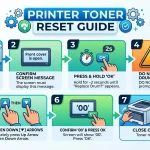
To reset the toner, open the front cover and hold the ‘OK’ button for two seconds until “Replace Drum?” appears. Do not follow the drum prompt; instead, press the ‘Start’ button, then immediately press the Up Arrow [▲] followed by the Down Arrow [▼]. When the screen shows ’00’, press ‘OK’ and close the cover.
How do I reset the drum life on a Brother DCP-L2540DW?
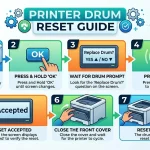
With the front cover open, press and hold the ‘OK’ button until the screen asks “Replace Drum?”. Press the Up Arrow [▲] to confirm the reset. Once the screen displays “Accepted,” you can close the front cover to finish the process.
Can I refill the Brother TN660 toner cartridge myself?
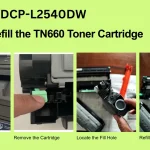
Yes, the TN660 toner cartridge can be refilled manually by removing the cartridge from the printer and locating the fill hole. After refilling the toner powder, you may need to perform a manual counter reset to clear any “Low Toner” messages.
Why is my Brother printer still saying “Replace Toner” after a refill?
This happens because the printer uses a physical gear or an internal counter to track usage rather than sensing the actual powder level. You must manually perform a Toner Reset using the printer’s keypad to clear the message and continue printing.
Where can I download the latest drivers for the Brother DCP-L2540DW?
You should always download the “Full Driver & Software Package” from the official Brother support website to ensure your printer and scanner work correctly on Windows or macOS.
Is this Brother DCP-L2540DW Maintenance Guide compatible with other L-series printers?
Yes, most steps in our Brother DCP-L2540DW Maintenance Guide apply to similar models like the L2520DW as well.

Dal Bahadur is a passionate tech enthusiast, hardware reviewer, and the founder of Phadera Tech. With years of experience in mobile technology and digital troubleshooting, he specializes in deep-dive smartphone reviews, gadget guides, and practical tech tips. His goal is to help readers make informed decisions before buying their next gadget.