
Setting up a new Android phone is always exciting, but the generic out-of-the-box configuration rarely gives you the best experience. Modern Android phone skins come packed with hidden settings that can massively boost your phone’s speed, battery life, and privacy if you know where to look.
These top 12 tips will help you skip the fluff and configure your new device like an absolute pro.
1. Purge the Bloatware & Evade “Dark Patterns”
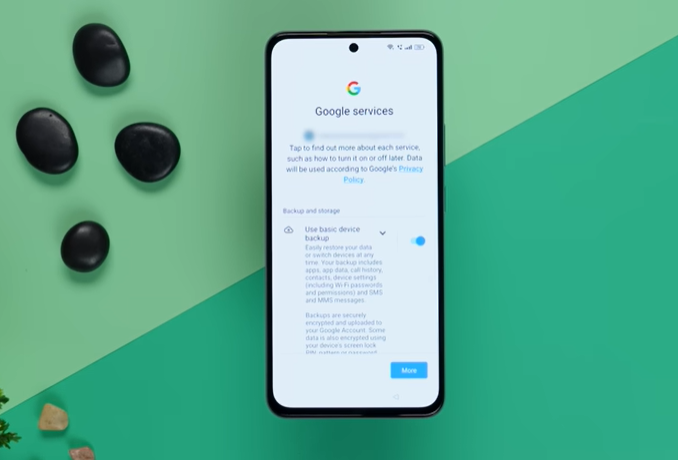
Almost every Android phone manufacturer packs new devices with pre-installed apps and games you will never use. During the initial startup wizard, pay close attention to the toggles—companies often sneak in checkboxes for “Glance Lock screen,” “App Recommendations,” or diagnostic data tracking.
- Once you hit the home screen, go to Settings > Apps.
- Uninstall every third-party app you don’t need.
- For un-deletable system apps, hit Disable to stop them from running in the background and drinking your RAM.
2. Uncap Pro Performance via Developer Options
Want to make a mid-range phone feel like a flagship, or make a flagship feel instant? Android’s hidden advanced menu lets you adjust the speed of the interface animations.
1.Unlock the Hidden Menu:Takes 10 seconds.
Navigate to Settings > About Phone. Scroll down to find Build Number and tap it rapidly 7 times. Enter your PIN when prompted. You will see a toast notification saying “You are now a developer!”.
2.Locate Developer Options:
Go back to the main Settings menu, tap System (or Additional Settings depending on your phone brand), and open the newly revealed Developer Options.
3.Tweak the Animation Scales:
Scroll down until you find three specific settings: Window animation scale, Transition animation scale, and Animator duration scale. By default, they are set to 1x. Change all three to 0.5x.
The Result: Your phone will cut the time it takes to render app transitions in half, making the entire user interface feel incredibly snappy.
3. Configure Google Play System Updates
Most users check for standard system updates, but completely forget about core component updates. The Google Play System Update handles security and system stability independently of your Android phone manufacturer.
- Go to Settings > Security & Privacy > Updates.
- Tap Google Play system update and check for updates.
- It often requires a quick restart, but it patches critical underlying zero-day vulnerabilities immediately.
4. Reclaim Screen Real Estate with Gestures
Many modern phones still default to the old-school three-button navigation bar at the bottom.
- Head over to Settings > Display > Navigation Bar (or System > Gestures depending on the skin).
- Switch from Buttons to Gesture Navigation.
- This removes the persistent bottom bar, giving you a completely immersive full-screen display while allowing you to fluidly swipe from the sides to go back, or swipe up to go home.
5. Lock Down Your Lock Screen Privacy
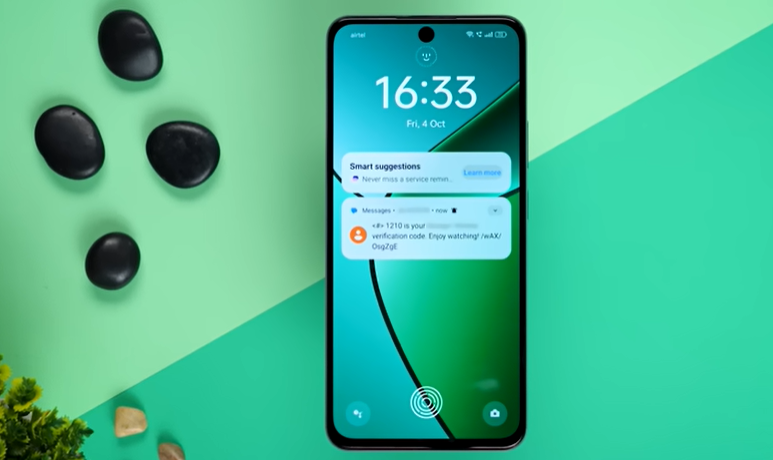
By default, when you get a text or an email, the contents display right on your lock screen for anyone looking at your desk to read.
- Go to Settings > Notifications > Notifications on Lock Screen (or Lock screen notifications).
- Select Hide sensitive content or Don’t show notifications.
- This allows you to still see which apps have alerts, but masks the actual message or OTP code until your Android phone recognizes your face or fingerprint.
6. Take Control of the Quick Settings Panel
Don’t get stuck swiping through multiple pages looking for basic tools. The Quick Settings shade (the panel that drops down when you swipe from the top) is completely modular.
- Swipe down twice to fully expand the panel.
- Tap the Pencil (Edit) icon.
- Drag your most frequent toggles—like Dark Mode, Hotspot, Extra Dim, or Quick Share—into the top six slots so they are immediately accessible on a single swipe.
7. Enable Wi-Fi Calling & VoNR (5G Calling)
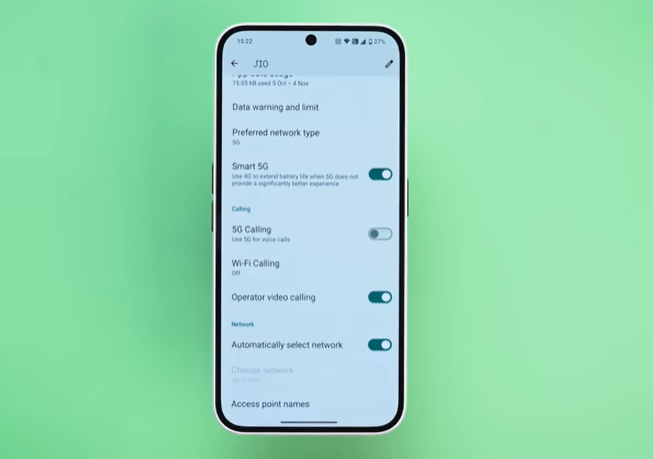
If you ever experience dropped calls inside concrete buildings or basements, this toggle is a lifesaver.
- Go to Settings > Network & Internet > SIMs (or Connections > Mobile Networks).
- Look for Wi-Fi Calling and toggle it On.
- If you have a modern 5G device and your carrier supports it, ensure VoNR (Voice over New Radio) is enabled. This routes your standard mobile calls over the ultra-fast 5G data network for pristine HD audio clarity.
8. Turn on Spam Protection & Caller ID
You don’t need clunky third-party apps to block telemarketers; Google has highly accurate, native crowd-sourced filtering built straight into the dialer.
- Open the default Android Phone app.
- Tap the three dots in the top right corner and open Settings.
- Tap Caller ID & Spam and turn on both See caller and spam ID and Filter spam calls. This silently deflects automated robocalls before your phone even rings.
For a deeper dive into mobile performance reviews and privacy guides, explore our latest tech reviews and guides on Phadera.
9. Set Up a Secure “Private Space”
If you ever hand your phone to a friend or colleague to show them a picture, you shouldn’t have to worry about them accidentally opening your banking apps or personal chat threads.
- Search for Private Space or Secure Folder in your Settings app.
- This creates a sandboxed, separate ecosystem inside your Android phone protected by a completely unique PIN or biometrics. Apps hidden inside won’t even show up in your main app drawer or share data with the rest of the OS.
10. Maximize Battery Health with Smart Charging
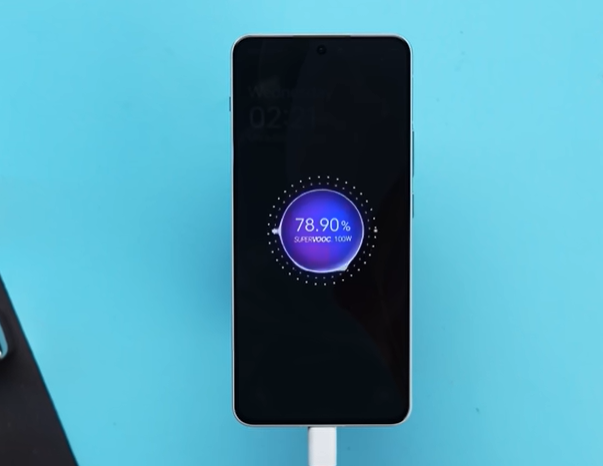
Lithium-ion batteries don’t like staying pinned at 100% capacity at high temperatures (like when plugged in overnight).
- Go to Settings > Battery.
- Look for Battery Protection, Adaptive Charging, or Protect Battery.
- Turn this on to let your phone automatically halt charging at 80% overnight, only squeezing in the final 20% right before your morning alarm rings. This significantly extends the total lifespan of your device’s physical battery hardware.
11. Adjust App Permissions and Opt-Out of Tracking Ads
Protect your privacy from cross-app tracking immediately out of the box.
12. Set Up the Physical Power Button Shortcut
Don’t fumble around looking for the camera icon when a fleeting moment happens.
- Go to Settings > System > Gestures (or Advanced Features).
- Tap Double-press power button and set it to Launch Camera.
- Now, no matter if your phone is locked, asleep, or if you’re in the middle of a heavy mobile game, double-clicking the physical power button instantly launches the camera app so you never miss a shot.
Android Phone Setup & Troubleshooting FAQs
Which Android secret code shows hardware test details?

Entering *#0*# into the Android phone dialer opens the General Test Mode (Service Menu) on most Android devices. This hidden diagnostic menu allows you to test:
Display & Touch: Check for dead pixels, screen burn-in, and touch sensitivity calibration.
Hardware Sensors: Test the accelerometer, gyroscope, proximity sensor, and fingerprint reader.
Vibration & Audio: Verify ear speaker clarity, stereo speakers, and haptic feedback motors.
How can I stop Android apps from draining battery in the background?
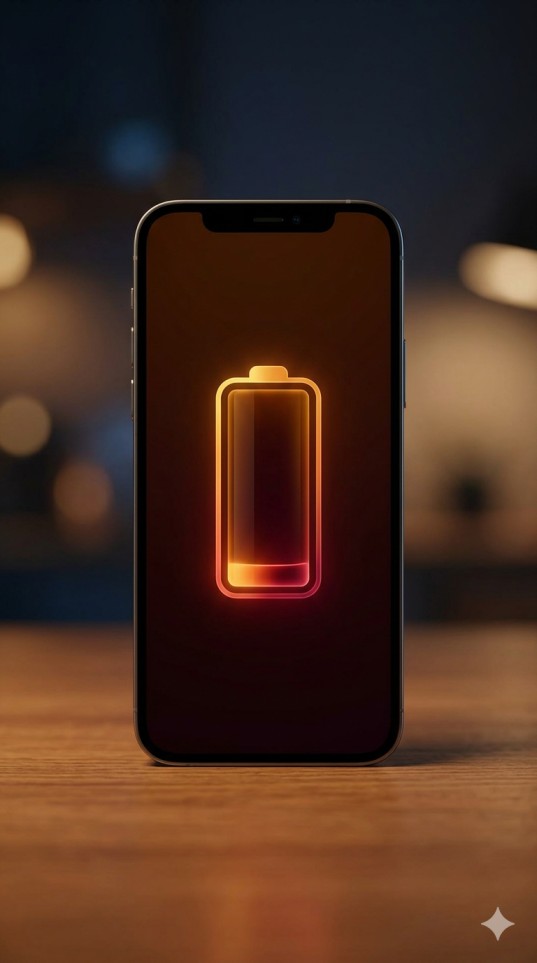
To prevent background battery drain without missing important notifications:
Enable Adaptive Battery: Go to Settings > Battery > Adaptive Preferences and toggle it on so Android automatically restricts rarely used apps.
Restrict Background Usage: Navigate to Settings > Apps, tap heavy battery drainers (like social media apps), select Battery, and change the setting to Restricted.
Turn Off Unused Connectivity: Disable Nearby Device Scanning (Settings > Connected Devices > Connection Preferences) when not needed.
Put Unused Apps to Sleep: Use your phone manufacturer’s built-in “Deep Sleeping Apps” feature to freeze apps you only open occasionally.
What is the safest way to clear cache on Android without losing data?
Clearing cache removes temporary temporary files (like web previews and cached images) without touching your personal accounts, chats, photos, or app settings:
Go to Settings > Storage > Apps.
Tap individual high-data apps (such as Chrome, Instagram, or TikTok).
Tap Clear Cache (Do NOT tap Clear Data / Clear Storage, as that resets the app and logs you out).
Use Built-in Device Care: Use Settings > Device Care > Optimize Now to safely wipe system-level cached junk files in one tap.
Why does my phone heat up during fast charging and how do I fix it?
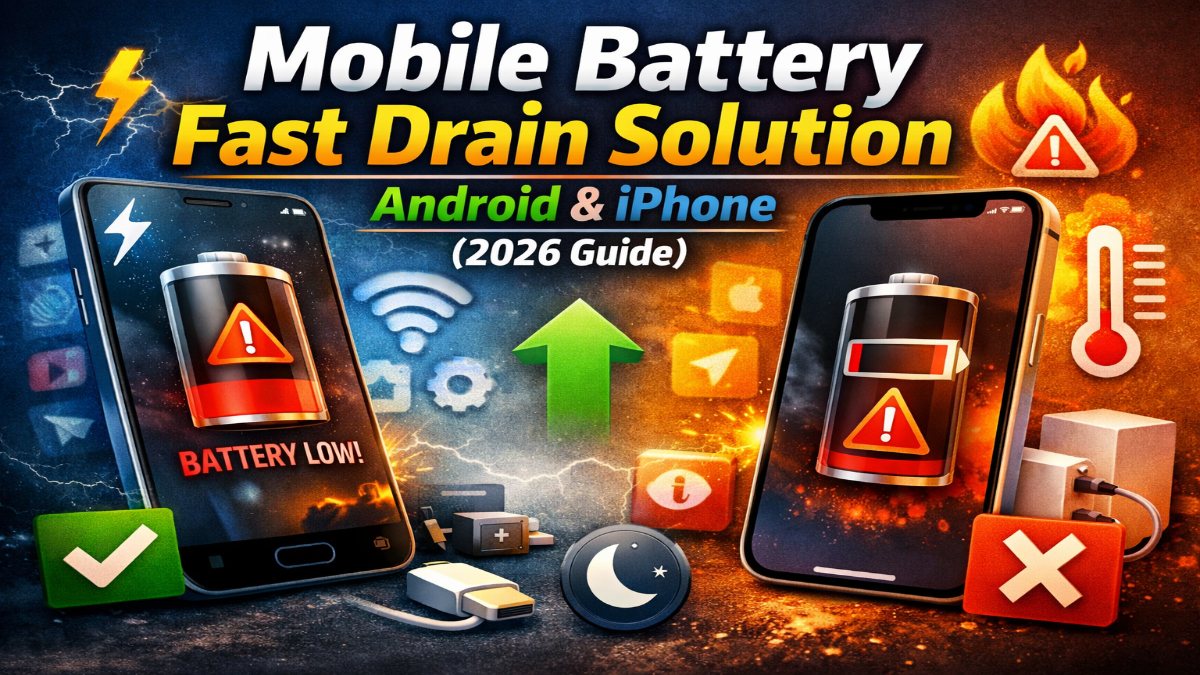
Fast charging generates heat as higher wattage transfers into the lithium-ion battery. While modern phones manage heat safely, excess heat can degrade long-term battery health.
Avoid Heavy Usage: Do not play high-graphics games or stream 4K video while fast charging.
Remove Thick Phone Cases: Heavy cases trap thermal energy against the phone frame during high-wattage charging.
Charge on Hard Surfaces: Avoid charging your phone on bed sheets, pillows, or couches that insulate heat.
Enable Smart Charging: Turn on Protect Battery or Optimized Battery Charging in settings to cap fast charging once the phone reaches 80%.
What is RAM Plus / Virtual RAM on Android phone and should you turn it off?

RAM Plus (or Memory Extension) converts a portion of your phone’s internal storage (UFS storage) into extra virtual memory to keep more apps open in the background.
Keep it ON if: You have a budget or mid-range phone with 4GB–6GB of RAM and frequently multitask between heavy apps.
Turn it OFF if: You have a flagship phone with 12GB–16GB of physical RAM, as reading from internal storage is slower than physical RAM and turning it off can actually speed up app launch times and save storage space.
Which Android phone brand offers the longest software update support?
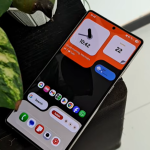
Samsung and Google lead the mobile industry by providing 7 years of full OS upgrades and security patches for their flagship devices (starting from the Galaxy S24/S25/S26 series and Pixel 8/9/10 series).
Samsung Galaxy (Flagships): 7 Years OS + Security updates.
Google Pixel (Pro Lineup): 7 Years OS + Pixel Drop Feature updates.
OnePlus / Xiaomi / vivo (Flagships): 4 to 5 Years OS + 6 Years Security updates.
Mid-Range Devices: 4 to 6 Years depending on the brand (e.g., Galaxy A-series offering up to 6 years).
What Android phone should I get in 2026?

The best choice depends on your budget and primary needs:
Best Overall: Samsung Galaxy S26 Ultra – Unmatched camera performance, integrated S Pen, and long-term software support.
Best Camera & Clean Software: Google Pixel 10 Pro – Exceptional AI photography, stock Android experience, and fast local processing.
Best Pro Camera Alternative: If you want manual DSLR-like control over shutter speed, ISO, and focal lengths, check out our detailed Sony Xperia 1 VIII review on Phadera to see how its optical zoom hardware compares.