
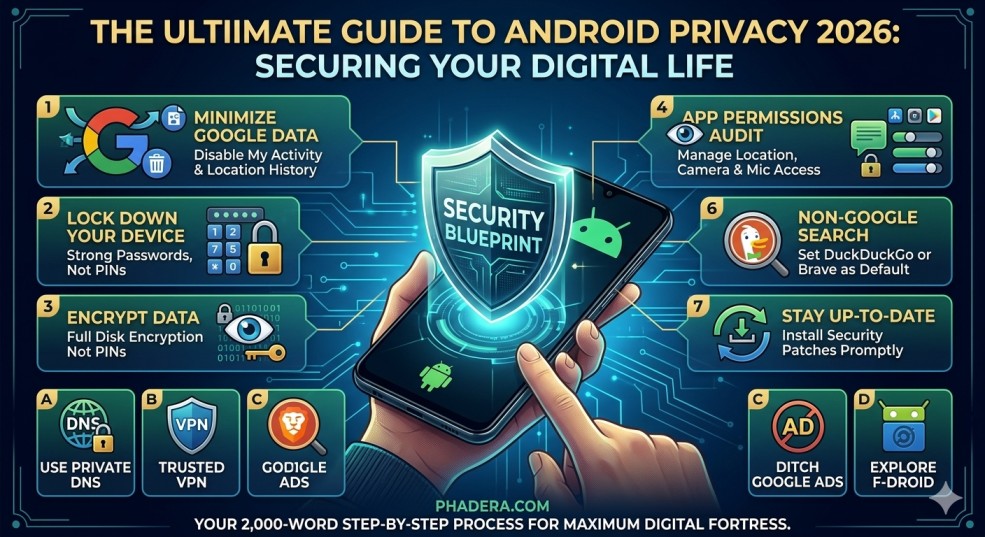
In an era where our smartphones are extensions of our identities, privacy is no longer a luxury—it is a necessity. Every app we download, every site we visit, and every location we stop at creates a digital footprint. For Android users, the flexibility of the OS comes with the responsibility of securing it.
If you are concerned about how much data Big Tech and third-party apps are harvesting from you, this 2,000-word deep dive will provide a step-by-step blueprint to transforming your Android device into a digital fortress.
Table of Contents
1. Understanding the Data Landscape
Before we dive into the “How,” we must understand the “Why.” Android is built by Google, a company whose primary revenue comes from advertising. By default, your phone is configured to collect data to build a “User Profile.” This profile knows where you sleep, what you buy, and even how fast you type. Our goal is to break this tracking cycle without losing the functionality of the smartphone.
2. Phase 1: Hardening the Core (System Settings)
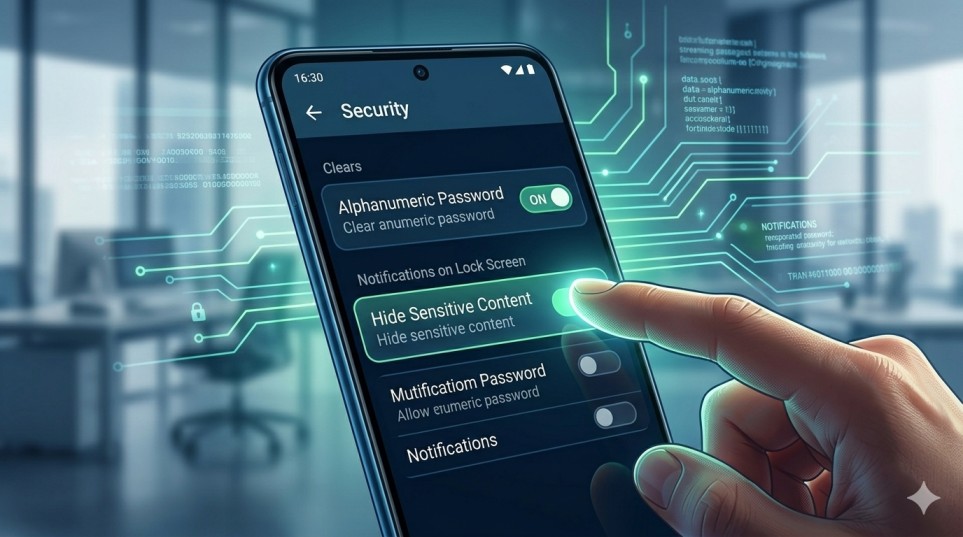
The first step is to fix the vulnerabilities built into the operating system itself.
Step 1.1: Enable Biometric & Strong Passcodes
Never use a simple 4-digit PIN.
- The Process: Go to Settings > Security > Screen Lock.
- Action: Choose an Alphanumeric Password. It is significantly harder to crack than a pattern or a simple PIN. Enable Fingerprint or Face Unlock for convenience, but ensure “Lockdown Mode” is enabled in your Power Button settings to disable biometrics instantly if you feel unsafe.
Step 1.2: Hide Notifications on Lock Screen
Visible notifications can leak OTPs (One-Time Passwords) or private messages to anyone glancing at your phone.
- The Process: Settings > Notifications > Notifications on Lock Screen.
- Action: Select “Hide sensitive content” or “Don’t show notifications at all.”
3. Phase 2: Taming the Google Ecosystem
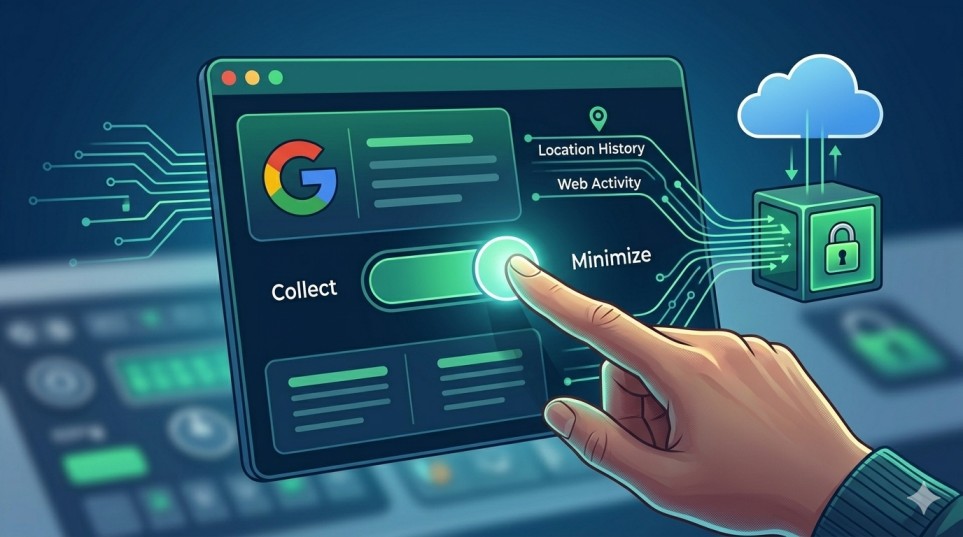
You don’t have to delete your Google account to stay private, but you must limit what it sees.
Step 2.1: The “My Activity” Purge
Google tracks your YouTube history, Web activity, and App usage.
- The Process: Open the Google App > Tap Profile Picture > Manage your Google Account > Data & Privacy.
- Action: Turn off Web & App Activity and YouTube History. At the very least, set the “Auto-delete” option to 3 months.
Step 2.2: Opt-out of Personalized Ads
Google assigns you an “Advertising ID” that follows you across apps.
- The Process: Settings > Google > Ads.
- Action: Tap “Delete Advertising ID.” This prevents apps from building a consistent profile of your behavior.
4. Phase 3: App Hygiene and Permission Audits
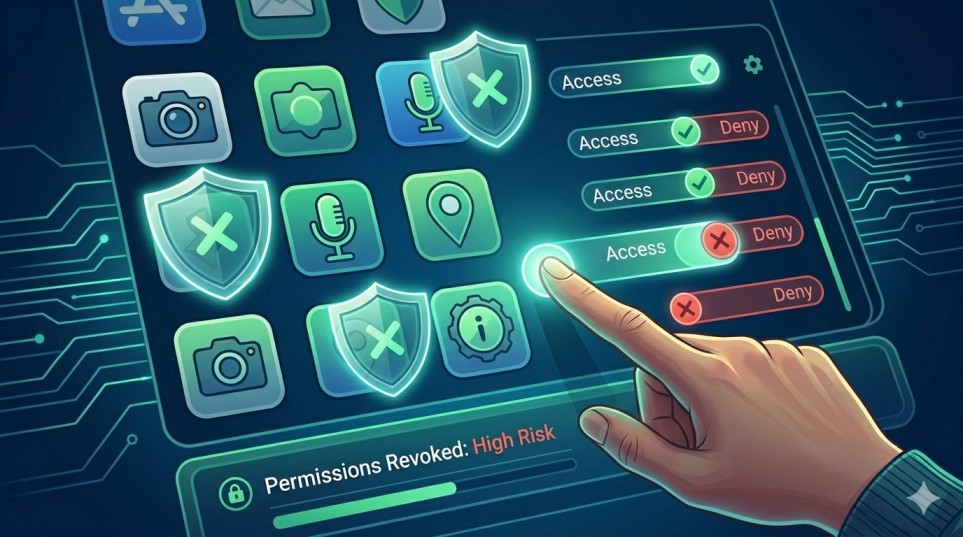
Apps are the biggest “leakers” of data. Many apps request permissions they don’t actually need (e.g., a Calculator app asking for your Location).
Step 3.1: The Permission Manager
- The Process: Settings > Privacy > Permission Manager.
- Action: Focus on Location, Camera, and Microphone.
- Change “Allow all the time” to “Only while using the app.”
- For apps you rarely use, select “Don’t allow.”
Step 3.2: Disable “Background Data Usage”
Many apps send data to servers even when you aren’t using them.
- The Process: Settings > Apps > See all apps > [Select App] > Mobile Data & Wi-Fi.
- Action: Toggle off “Background data.” This also saves battery and mobile data.
5. Phase 4: Advanced Network Privacy (VPNs & DNS)
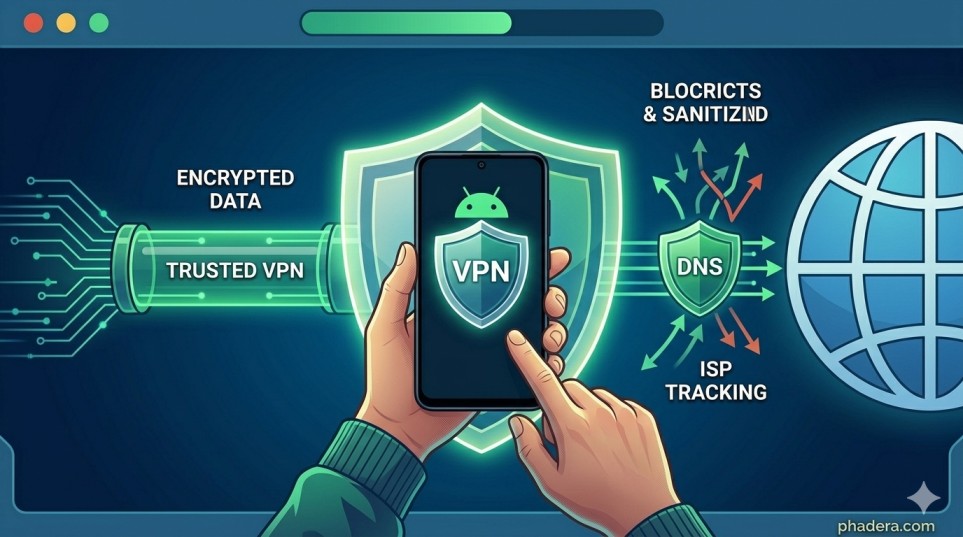
Even if your phone is secure, your Internet Service Provider (ISP) can see which websites you visit.
Step 3.1: Use Private DNS
This encrypts your DNS queries so your ISP can’t track your browsing habits.
- The Process: Settings > Network & Internet > Private DNS.
- Action: Select “Private DNS provider hostname” and enter
dns.adguard.com(to block ads) or1dot1dot1dot1.cloudflare-dns.com.
Step 3.2: Use a Trusted VPN
A VPN masks your IP address. Avoid “Free VPNs” as they often sell your data. Stick to reputable services like Mullvad, ProtonVPN, or IVPN.
6. Phase 5: Switching to Privacy-First Alternatives
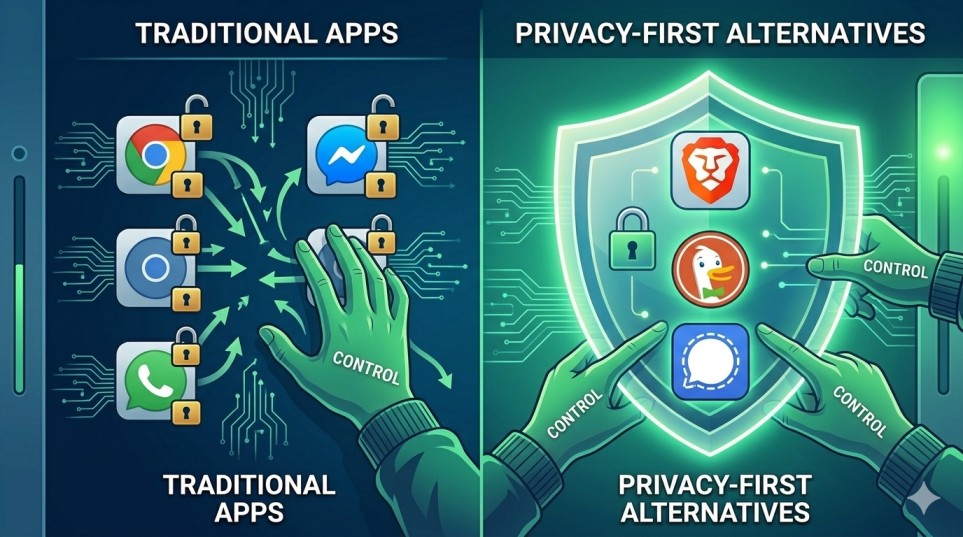
The infographic mentions DuckDuckGo, and for good reason. Using alternative apps can drastically reduce data leakage.
- Browser: Replace Chrome with Brave or Firefox (with uBlock Origin extension).
- Search Engine: Switch from Google to DuckDuckGo or SearXNG.
- Messaging: Switch from SMS/WhatsApp to Signal, which has industry-leading encryption.
- App Store: Explore F-Droid. It is a catalog of FOSS (Free and Open Source Software) apps that contain zero trackers.
7. Phase 6: Physical Security & Encryption
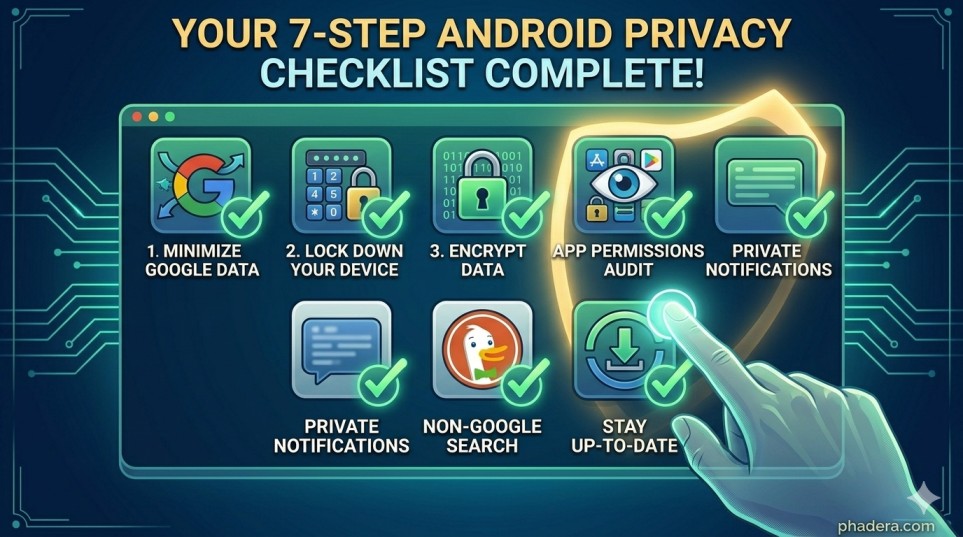
If your phone is physically stolen, encryption is your last line of defense.
- Encryption: Most modern Androids (Android 10+) are encrypted by default. Check this in Settings > Security > Advanced > Encryption & Credentials.
- Find My Device: Enable this in Settings > Google > Find My Device. However, for maximum privacy, some prefer to leave this off to prevent Google from constantly tracking the device’s location.
8. The “Nuclear Option”: Custom ROMs
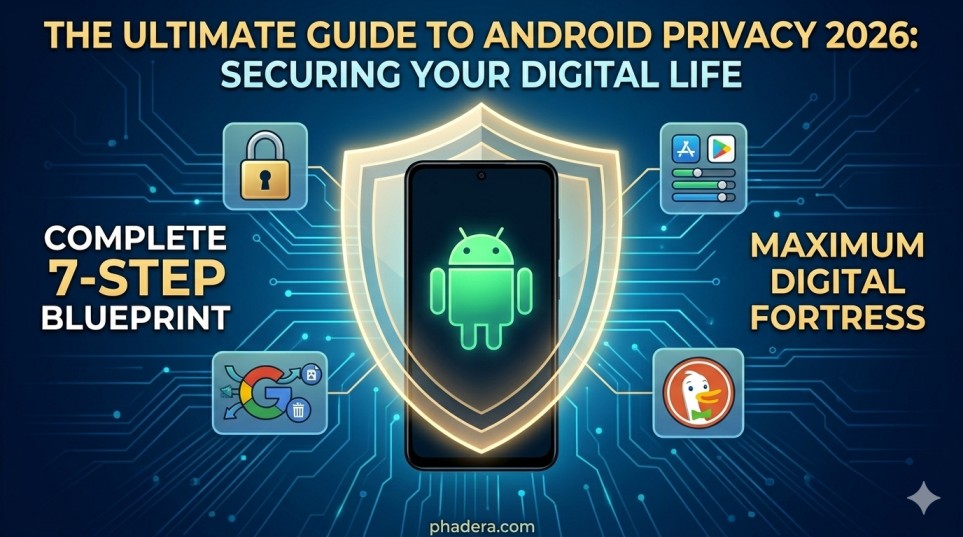
For users who want absolute privacy, the infographic mentions LineageOS. In 2026, we also have GrapheneOS (for Pixel phones). These Operating Systems remove Google entirely (De-Googling). This is for advanced users only but offers a level of privacy that a standard Android phone simply cannot match.
9. Summary Checklist for 2026
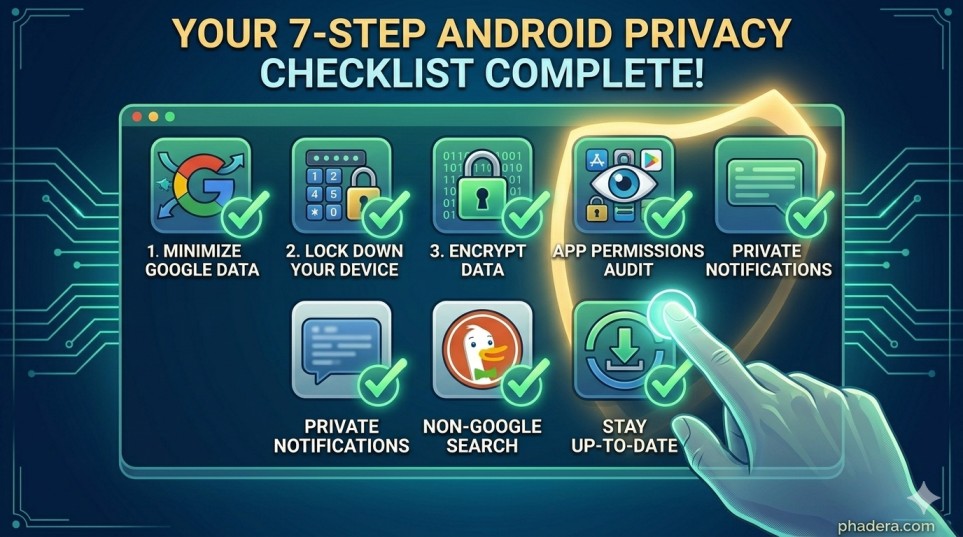
- [ ] Delete Advertising ID.
- [ ] Set Private DNS to AdGuard.
- [ ] Audit “High Risk” permissions (Camera/Mic).
- [ ] Install a Privacy Browser (Brave/Firefox).
- [ ] Enable 2-Factor Authentication on all accounts.
- [ ] Turn off “Location History” in Google Account.
Frequently Asked Questions (FAQ)
1. How do I protect my privacy on Android?
You can protect your privacy on Android by reviewing app permissions, disabling unnecessary location tracking, keeping your phone updated, enabling Google Play Protect, and using a strong lock screen password or biometric security.
2. What are the best Android privacy settings?
The best Android privacy settings include limiting app permissions, turning off location history, disabling ad personalization, enabling two-factor authentication, and regularly reviewing the privacy dashboard.
3. Does Android collect personal data?
Android may collect certain data such as device information, location, and usage activity to improve services. Users can manage and limit data collection through privacy settings and Google account controls.
4. How do I stop apps from tracking me on Android?
You can stop apps from tracking you by disabling location access, limiting background activity, turning off ad personalization, and removing permissions for apps that do not require them.
5. Is Android safe for banking and payments?
Yes, Android is generally safe for banking if you use official apps, keep your phone updated, enable biometric authentication, and avoid accessing financial accounts on unsecured public Wi-Fi networks.
6. What is the Android Privacy Dashboard?
The Android Privacy Dashboard is a feature that shows how apps access sensitive data such as location, camera, and microphone. It helps users monitor and manage permissions easily.
7. How can I check which apps access my data?
You can check which apps access your data by going to Settings → Privacy → Permission Manager, where you can view and control permissions like camera, location, and contacts.
8. Can Android apps access my camera and microphone?
Yes, apps can access your camera and microphone if permission is granted. Android displays indicators when these sensors are in use, and permissions can be revoked in settings.
9. What is Google Play Protect and how does it work?
Google Play Protect is Android’s built-in malware protection system that scans apps for harmful behavior and alerts users if potentially dangerous apps are detected.
10. How often should I update my Android phone?
You should update your Android phone whenever a new update is available because updates contain important security patches and protection against new cyber threats.
11. How do I turn off location tracking on Android?
You can turn off location tracking by going to Settings → Location, disabling location services, or restricting location access to only certain apps.
12. Is public Wi-Fi dangerous for Android users?
Public Wi-Fi can be risky because attackers may intercept data on unsecured networks. Using a VPN and avoiding sensitive activities on public networks helps protect your data.
13. What is the safest browser for Android privacy?
Browsers like Firefox, Brave, and DuckDuckGo are often recommended for privacy because they include built-in tracking protection and stronger privacy controls.
14. Can hackers access my Android phone?
Hackers can access Android phones through malicious apps, phishing attacks, or outdated software. Keeping your device updated and installing apps only from trusted sources reduces the risk.
15. How do I remove malware from an Android phone?
To remove malware, uninstall suspicious apps, run a security scan with Google Play Protect or a trusted antivirus app, clear browser data, and update your Android system.

Dal Bahadur is a passionate tech enthusiast, hardware reviewer, and the founder of Phadera Tech. With years of experience in mobile technology and digital troubleshooting, he specializes in deep-dive smartphone reviews, gadget guides, and practical tech tips. His goal is to help readers make informed decisions before buying their next gadget.