
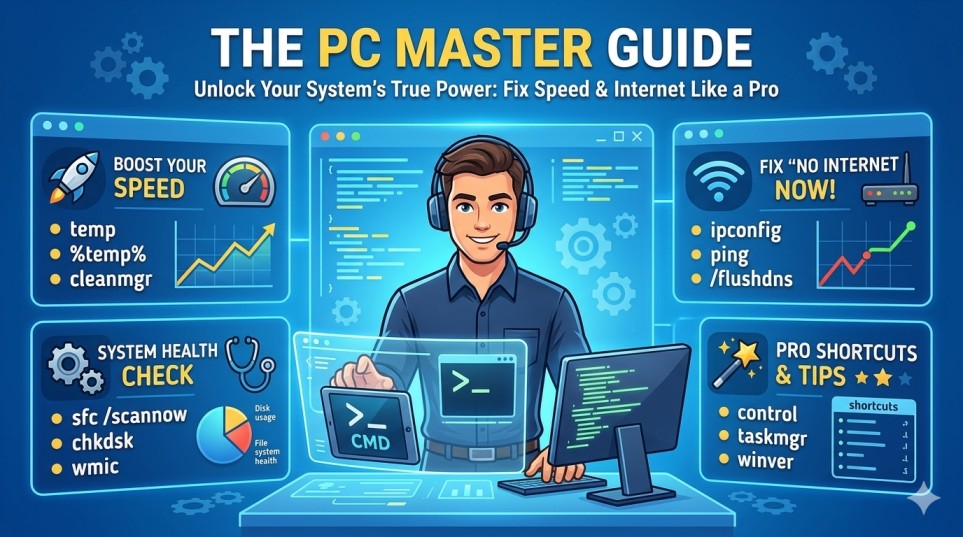
We’ve all been there. You’re in the middle of something important, and suddenly—BAM! Your PC freezes, or the “No Internet” icon mocks you from the corner of the screen. Most people p anic and call IT support, but here’s a secret: You can fix 90% of these problems yourself using simple “CMD” commands.
In this guide, I’ll show you the exact shortcuts and commands used by professionals to keep computers running like new.
Table of Contents
1. The Reality of IT Support: Why Self-Fixing is a Superpower
Working in IT isn’t just about sitting behind a screen; it’s a high-pressure job involving multitasking and constant learning. When you learn these basic commands, you aren’t just fixing your PC—you’re becoming the “Unsung Hero” of your own home or office.
The IT Support Workload vs. Your Shortcut
🛠️ IT Support Shortcuts
2. Speed Up Your PC: Cleaning the “Digital Junk”

If your PC is lagging, it’s usually because it’s “constipated” with temporary files. Imagine a desk piled high with old mail—you can’t find your pen! These commands clear that desk instantly.
Quick Cleanup Commands
🚀 Windows Cleanup Shortcuts
3. Fixing the “No Internet” Nightmare

Internet issues are usually just a “handshake” problem between your PC and the router. Instead of restarting your router (which takes forever), use these network commands to reset your connection in seconds.
Internet Troubleshooting Chart
🌐 Network Pro Commands
4. Hardware & System Health: Checking Your PC’s “Heart”
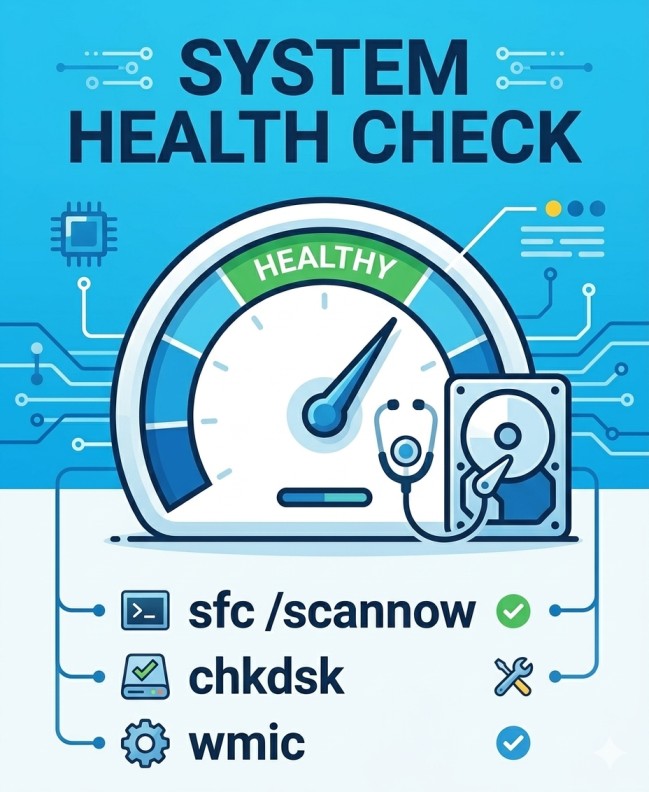
Is your battery dying? Is your RAM enough for gaming? You don’t need to take your laptop apart to find out. Windows has hidden “doctors” built into the system.
System Info Commands
🛠️ System Health Toolkit
powercfg /batteryreport
wmic cpu get name
sfc /scannow
chkdsk /f
5. The “Bonus” Hidden Shortcuts
To wrap it up, here are the shortcuts that make you look like a total tech wizard. Instead of clicking through 10 menus, just type these in the “Run” box (Windows Key + R).
The “Power User” Cheat Sheet
⚡ Windows Quick Shortcuts
control
devmgmt.msc
taskmgr
winver
6. Advanced Windows CMD Commands List
1. Power & Battery Optimization
🔋 Power & Storage Boost
2. Network & Security Secrets
🛡️ Network & Privacy Toolkit
3. File & System Management
🔧 System & Driver Control
Final Pro-Tip for Phadera.com Readers:
Whenever you use these commands, make sure you run the Command Prompt (CMD) as an Administrator. Just right-click on CMD and select “Run as Administrator” to give it the power to make these changes.
By spending just 5 minutes a month running these “System Health” checks, you can double the lifespan of your computer and avoid expensive repair bills!
Caution: Always be careful when using CMD. One wrong command can change system settings, so always double-check the spelling before hitting Enter!
Did this guide help you? Let us know in the comments if you found a “hidden” error on your PC!

Dal Bahadur is a passionate tech enthusiast, hardware reviewer, and the founder of Phadera Tech. With years of experience in mobile technology and digital troubleshooting, he specializes in deep-dive smartphone reviews, gadget guides, and practical tech tips. His goal is to help readers make informed decisions before buying their next gadget.