
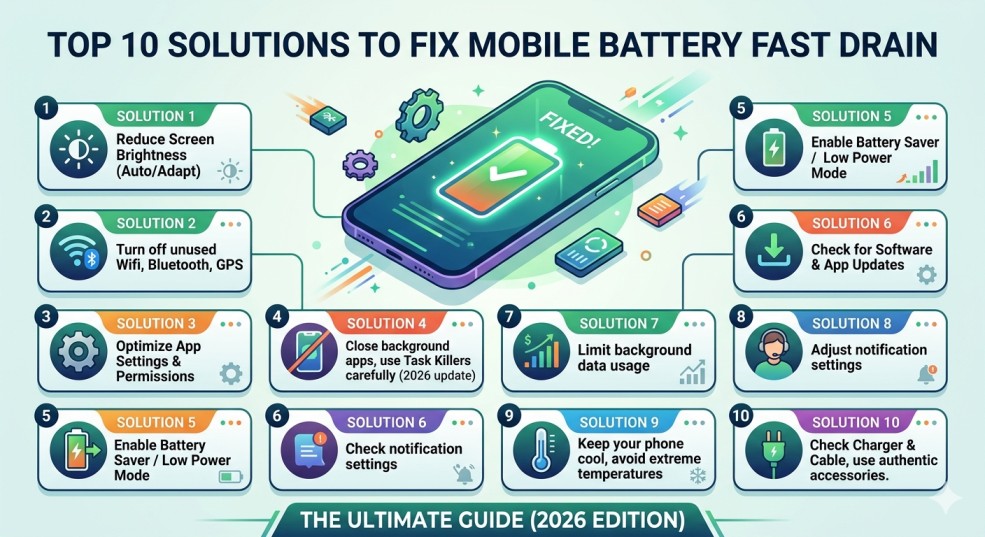
If you are struggling with mobile battery fast drain, you are not alone; it is one of the most common issues smartphone users face today. Understanding why a mobile battery fast drain occurs is the first step toward reclaiming your device’s performance and ensuring it lasts through the day.
In an era where our lives revolve around smartphones, a battery that drains faster than a sink is a major crisis. Whether you are using a high-end flagship or a budget-friendly device, battery degradation and software inefficiencies can strike anyone.
This guide provides a professional look at why your battery is dying and offers ten expert-level solutions to reclaim your device’s longevity.
Table of Contents
Understanding the “Battery Drain” Phenomenon
Before jumping into solutions, we must understand the “why.” Modern Lithium-Ion (Li-ion) batteries work through chemical reactions. Over time, these reactions become less efficient. However, 90% of sudden battery drains are caused by software conflicts, not hardware failure.
🔋 Stop the Drain! Our 2026 Ultimate Guide is live.
Beyond just settings, make sure you aren’t accidentally damaging your hardware—check out our quick web story on 7 common mistakes killing your smartphone.
Thinking of a new phone instead? Read why the Sony Xperia 1 VII is making waves in battery performance.
1. Audit High-Energy Apps (The Silent Killers)
Before applying fixes, you must audit your apps. Often, a mobile battery fast drain is triggered by high-energy social media apps like Facebook or TikTok that refresh constantly in the background.
Not all apps are created equal. Social media apps like Facebook, Instagram, and TikTok are notorious for “Background Refreshing.” They constantly ping servers for notifications, even when your screen is off.
- How to Fix: Go to Settings > Battery > Battery Usage. Identify apps with high percentages.
- Pro Tip: Use “Lite” versions of apps (like Facebook Lite) if your battery health is below 80%.
2. Optimize Display Settings: Refresh Rate & Resolution
Adjusting your display is the fastest way to stop a mobile battery fast drain. High refresh rates (120Hz) and maximum brightness are the primary culprits. Switching to a dynamic refresh rate can instantly mitigate the mobile battery fast drain you are experiencing.
If you have a 120Hz or 144Hz display, your GPU is working twice as hard. While it looks smooth, it eats battery life.
- The Fix: Switch to a Dynamic Refresh Rate or lock it at 60Hz for daily tasks.
- Resolution: If your phone supports QHD+, drop it down to FHD+. The human eye rarely notices the difference on a 6-inch screen, but your battery will.
Looking for a device with better battery endurance? While these tips will help your current phone, some modern flagships are built for extreme efficiency. Check out our deep dive into Sony’s latest powerhouse here: 🔗 Sony Xperia 1 VII Review: Battery Life and Performance Test
3. Mastering the 20-80 Charging Rule
If software tweaks don’t work, your mobile battery fast drain might be hardware-related. Using non-original chargers or exposing the phone to extreme heat can lead to permanent damage, making a mobile battery fast drain inevitable until the battery is replaced.
Heat is the enemy of batteries. Charging your phone to 100% and letting it drop to 0% creates high voltage stress and heat.
- The Strategy: Keep your battery between 20% and 80%. This can double the lifespan of your battery cycles.
4. Manage Wireless Connectivity (GPS, Bluetooth, 5G)
5G is revolutionary, but in areas with weak 5G coverage, your phone’s modem works overtime to stay connected, leading to massive heat and drain.
- Solution: Switch to LTE/4G if you are in a weak 5G area. Turn off “Scanning for Bluetooth/Wi-Fi devices” in the location settings.
Comparison: Impact of Settings on Battery Life
🔋 Battery Life Optimization
5. Disable Background Data & Auto-Sync
Your phone is constantly talking to the cloud. Every time an email arrives or a photo backs up, the processor wakes up.
- The Fix: Disable “Auto-sync” for accounts you don’t check hourly. Set your Email to “Fetch” every 30 minutes instead of “Push.”
6. Update (or Roll Back) Your Software
Sometimes, a new OS update has a “buggy” kernel that causes the CPU to stay at high frequencies.
- Advice: If the drain started right after an update, wait for a hotfix or consider a factory reset to clear old cache files that might be conflicting with the new OS.
7. Identify “Vampire” Hardware Issues
Sometimes the problem is physical. A slightly bent charging port or a cheap third-party charging cable can cause “parasitic drain” or inefficient charging.
- The Fix: Always use original or MFi-certified/branded PD (Power Delivery) chargers.
8. Dark Mode: More Than Just Aesthetics
On OLED and AMOLED screens, “Black” is simply an “Off” pixel. If your UI is black, those pixels consume zero power.
- Result: Switching to a true-black wallpaper and system-wide Dark Mode can save up to 15-20% battery per day.
9. Temperature Control
If your phone is hot to the touch, your battery is dying. High temperatures increase internal resistance.
- The Fix: Avoid gaming while charging. Don’t leave your phone on the car dashboard in the sun.
10. The Last Resort: Factory Reset & Battery Replacement
If you have tried everything and the “Cell Standby” or “System” is still consuming the most battery, your software might be corrupted.
- Battery Replacement: If your “Battery Maximum Capacity” is below 80%, no software trick will help. It is time for a physical replacement.
Pros & Cons of Battery Saving Techniques
Using “Power Saving Mode”
- Pros: Instantly extends life, limits CPU, reduces brightness.
- Cons: Disables 120Hz, stops background notifications, reduces performance in games.
Using “Third-Party Battery Apps”
Cons: Often stay in the background themselves, causing more drain.
Pros: Good for viewing detailed stats (like AccuBattery).
Conclusion:
Mobile battery drain is a combination of hardware health and software discipline. By auditing your apps, managing your display, and following the 20-80 charging rule, you can significantly extend the life of your device.
Was this guide helpful? Check out our latest hardware reviews at Phadera.com.
Frequently Asked Questions (FAQ)
Why is my phone battery draining so fast all of a sudden?
Sudden battery drain is usually caused by a buggy software update, a “rogue app” running in the background, or extreme temperature changes. If you recently installed an app or updated your OS, try clearing the system cache or uninstalling the latest app to see if the performance improves.
Does “Fast Charging” damage my battery life?
Fast charging itself isn’t harmful, but the heat generated by fast charging can be. To protect your battery, avoid using your phone for heavy tasks (like gaming) while it is fast-charging, and ensure you are using an original or high-quality certified charger.
Is it okay to charge my phone to 100% every night?
While modern smartphones have sensors to stop charging at 100%, keeping it plugged in all night keeps the battery at a high-voltage state, which can degrade it faster over time. For the best longevity, try to unplug it once it reaches 80-90% or use the “Optimized Battery Charging” feature found in most Android and iOS devices.
Can a VPN or Antivirus app cause battery drain?
Yes. VPNs and Antivirus apps run constantly in the background and encrypt/scan data in real-time. This keeps the processor active and can lead to significant battery consumption. Only turn on your VPN when necessary to save power.
At what percentage should I replace my mobile battery?
Most experts and manufacturers (like Apple and Samsung) recommend replacing the battery once its Maximum Capacity drops below 80%. At this point, you will notice significantly shorter usage times and potential performance “throttling” where the phone slows down to prevent unexpected shutdowns.

Dal Bahadur is a passionate tech enthusiast, hardware reviewer, and the founder of Phadera Tech. With years of experience in mobile technology and digital troubleshooting, he specializes in deep-dive smartphone reviews, gadget guides, and practical tech tips. His goal is to help readers make informed decisions before buying their next gadget.