
Is your phone freezing or lagging when opening simple apps? The smartphone hang problem has become a major frustration for millions of mobile users today. As apps become heavier and OS updates demand more power, performance issues are rising. Whether you are using a budget device or an older phone, this guide covers every effective solution to fix the smartphone hang problem permanently.
Whether you are using a budget smartphone, a mid-range device, or even an older flagship phone that has started acting sluggish over time, this comprehensive guide will walk you through every practical solution to fix smartphone hang problems permanently in 2026.
Root Causes Behind the Smartphone Hang Problem
Before jumping into the fixes, it helps to understand why modern smartphones begin to lag. In 2026, mobile architecture has changed significantly compared to a few years ago.
Here are the primary culprits causing your phone to freeze:
- Storage Bottlenecking: Modern flash memory (UFS 2.2, 3.1, or UFS 4.0) relies on empty space to maintain read and write speeds. When your storage is over 80–80% full, data processing drops drastically.
- Mismanaged RAM Expansion (Virtual RAM): While manufacturers market “12GB RAM (6GB + 6GB Virtual RAM)”, using slow internal storage as swap memory can actually slow your system down.
- Heavy AI & Background Services: Background AI processes, live widgets, telemetry, and constant syncing hog CPU resources silently.
- Thermal Throttling: Heat builds up easily during gaming or charging, causing the processor to deliberately slow down to prevent hardware damage.
- Software Bloat & Outdated Cache: Accumulated junk files and bloated updates build up conflicts within system code.
Part 1: Quick Fixes When Your Phone Is Currently Frozen
If your smartphone is frozen right now and unresponsive to touches, follow these immediate recovery steps before tweaking settings.
1. Perform a Force Restart (Hard Reboot)
A normal restart requires screen interaction. When the screen isn’t responding, use key combinations:
- For Most Android Phones (Samsung, Xiaomi, Realme, Vivo, OPPO, OnePlus): Press and hold the Power Button + Volume Down Button simultaneously for 10–15 seconds until the screen turns black and the manufacturer logo appears.
- For iPhones: Quick-press Volume Up, quick-press Volume Down, then press and hold the Side/Power Button until the Apple logo appears.
2. Remove Heavy Cases and Cool Down the Device
If your phone is hot to the touch, thermal protection has likely throttled the processor to minimum clock speeds. Take off thick protective covers, step away from direct sunlight, and leave the device idle in a cool room for 10 minutes.
Part 2: How to Solve the Smartphone Hang Problem Step-by-Step
Once your device is functional, implement these essential optimizations to eliminate lagging permanently.
Step 1: Fix the Storage Bottleneck (The 20% Rule)
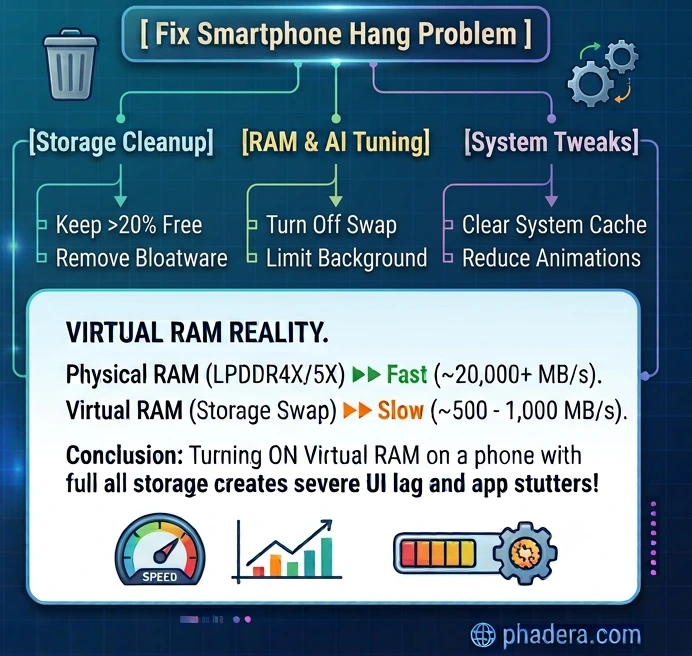
Your smartphone’s operating system requires continuous temporary write space to execute applications smoothly. When your internal storage is more than 80% full, it directly triggers a severe smartphone hang problem due to slow read/write speeds.
Golden Rule: Always keep at least 15% to 20% of total storage space completely free.
How to optimize storage effectively:
- Target Duplicate Media: Use modern files management tools like Files by Google to detect and delete duplicate photos, large videos, and unneeded media attachments.
- Clear WhatsApp / Social Media Cache: Apps like WhatsApp, TikTok, Instagram, and Telegram store massive amounts of hidden media.
- Go to Settings > Apps > WhatsApp > Storage > Clear Cache.
- Uninstall Unused Apps: Unused apps consume background services even when unopened. Remove games or utility apps you haven’t used in the past month.
Step 2: Disable or Reconfigure Virtual RAM / Extended RAM
One of the biggest misconceptions in modern smartphones is that Virtual RAM (Extended RAM / RAM Expansion) makes your phone faster. Many users turn on RAM expansion hoping to speed up their phone, but on low-speed storage, it actually worsens the smartphone hang problem.

Virtual RAM uses a portion of your internal storage as temporary RAM. However, storage read/write speeds are significantly slower than actual physical RAM. If your internal storage is degraded or nearly full, Virtual RAM actually causes severe frame drops and lagging.
Solution:
- Open Settings.
- Search for “RAM Expansion”, “Memory Extension”, or “RAM Plus”.
- Turn it off (or lower it to the lowest setting like 2GB).
- Restart your phone. You will notice smoother multitasking almost immediately.
Step 3: Remove Bloatware and Disable System System Telemetry
Budget and mid-range devices from brands like Xiaomi (MIUI/HyperOS), Realme (Realme UI), Vivo (Funtouch OS), and Tecno often come loaded with pre-installed third-party apps (bloatware) and system ad services. Background ad services and unwanted pre-installed apps are silent contributors to the daily smartphone hang problem on budget Android devices.
Actionable steps to remove bloatware:
- Uninstall Third-Party Pre-installs: Long press and uninstall non-essential utility apps, store clones, and third-party games.
- Disable System App Recommendations:
- Go to system apps (like File Manager, Security, or System Launcher) > Settings > turn off “Receive Recommendations” or “Personalized Ads”. This prevents background servers from fetching ad banners continuously.
- Disable Unnecessary System Apps: If an app cannot be uninstalled, go to Settings > Apps, select the app, and tap Disable.
Step 4: Optimize Background Process Limits & System Animations
If you are using an older smartphone or a device with 4GB/6GB physical RAM, reducing graphical overhead improves responsiveness instantly.
Enable Developer Options:
- Go to Settings > About Phone.
- Tap on Build Number (or Version Name) 7 times until you see the notification “You are now a developer!”.
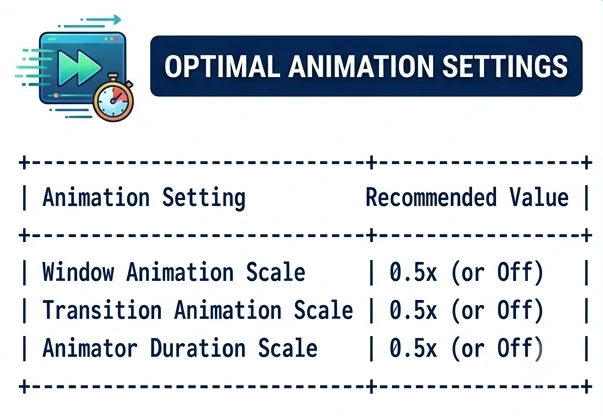
Adjust Animation Scales:
- Go back to Settings > System > Developer Options.
- Scroll down to find:
- Window animation scale
- Transition animation scale
- Animator duration scale
- Change all three settings from 1x to 0.5x (or Off).
This doubles the perceived speed of opening apps and navigating the user interface.
Step 5: Clear App Cache Regularly (Avoid “RAM Cleaner” Apps)
Warning: Do NOT install third-party “RAM Cleaner”, “Speed Booster”, or “Battery Saver” apps from the Play Store. These apps stay continuously active in the background, run intrusive advertisements, and cause more phone hanging issues than they solve!. Regularly clearing temporary junk from heavy social apps is one of the easiest ways to prevent a sudden smartphone hang problem.
Instead, use native OS tools or manually clear app caches:
- Go to Settings > Apps > See All Apps.
- Sort apps by Size.
- Tap on high-usage apps (e.g., Chrome, Facebook, YouTube, Instagram).
- Select Storage & Cache > tap Clear Cache (Do not select “Clear Data” unless you want to log back into the app).
Step 6: Update OS and System Webview
Software bugs within system frameworks can lead to memory leaks, causing apps to freeze unexpectedly.
- Update the Operating System: Go to Settings > System Update and download the latest patch released by your manufacturer.
- Update Android System WebView & Chrome: Many apps depend on Android System WebView to display web content. If this core component is outdated, apps like banking or social media will crash or hang.
- Open Google Play Store > Search for Android System WebView > Tap Update.
- Update Google Chrome as well.
Before tweaking deep system settings, ensure your operating system and essential components are fully up to date. If you recently bought a replacement device or upgraded, follow our step-by-step guide to setup a new Android phone properly to ensure all system services and security patches transfer without errors.
Step 7: Manage MicroSD Cards (For Android Users)
If you are using an old or slow MicroSD card (Class 4 or Class 10), it can severely degrade phone performance.
- Modern smartphone operating systems continuously index files stored on external memory.
- If the SD card has corrupted sectors or slow read speeds, the phone’s file system freezes while trying to read data.
Recommendation: Remove your SD card temporarily to test if performance improves. If you must use an SD card, ensure it is rated A1 or A2 (Application Performance Class) with high read/write speeds.
Part 3: What to Do If Your Smartphone Is Still Hanging?
If you have tried all software tweaks and your device still struggles to perform basic operations, you are facing either deeper software corruption or hardware wear.
Option A: Perform a Factory Data Reset
A Factory Reset returns your smartphone software back to the condition it was in when you first unboxed it, removing corrupted system files, malware, and hidden deep-level cache files.
Important: Back up all your vital photos, documents, and contacts to Google Drive, cloud storage, or a computer before proceeding.
How to Factory Reset:
- Go to Settings > System (or General Management).
- Select Reset Options > Erase All Data (Factory Reset).
- Enter your PIN/Password and confirm.
- Set up your phone as a new device (avoid restoring bloated full backups immediately to prevent restoring old junk files).
Option B: Battery Degradation & Hardware Issues
If your phone is more than 3 or 4 years old, the internal lithium-ion battery may no longer deliver consistent voltage to the processor.
When processor demand surges, degraded batteries drop voltage, forcing the chipset to underclock automatically to prevent sudden shutdowns. Replacing an old battery at an authorized service center can often restore original performance speeds.
Finding the right balance between raw hardware power, thermal management, and long-term software stability is essential when picking a gaming phone. To give your readers a comprehensive overview of how top brands stack up across different price points, check out this in-depth guide on which mobile company is best for gaming in 2026.
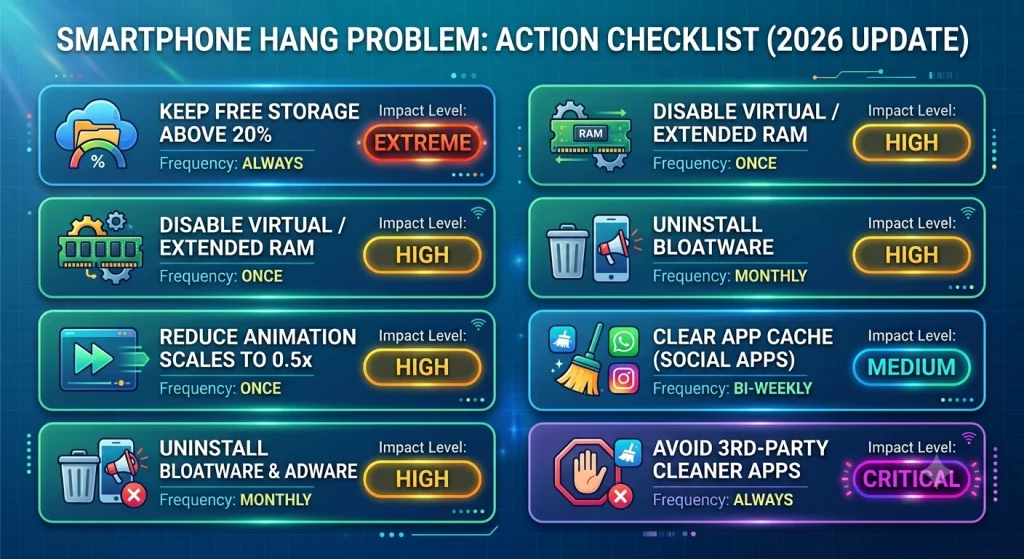
Quick Summary Checklist: How to Keep Your Phone Fast
Frequently Asked Questions (FAQs)
Why does my phone hang even though I have plenty of RAM?

RAM is only one factor. If your internal storage is full, your processor is overheating, or you have too many active background processes can trigger a smartphone hang problem even if you have 8GB or 12GB of physical RAM..
Does restarting the phone every day help prevent lagging?

Yes! Restarting your smartphone clears volatile RAM, terminates runaway background processes, stops memory leaks, and freshens network modules. Restarting your phone 2–3 times a week is a great habit.
Can a virus or malware make my Android phone hang?

Yes. Adware or malicious scripts running in the background can consume up to 100% of your CPU resources. Avoid downloading APK files from unknown websites, and regularly check your installed app list for unfamiliar apps without icons.