

In 2026, relying solely on local hard drives or smartphone internal memory to hold sensitive files, financial records, 4K videos, work documents, and system backups is a massive digital risk. Drive corruption, physical device theft, liquid spills, and ransomware attacks occur every day.
While adopting modern cloud solutions is non-negotiable, many users confuse cloud storage with cloud backup. Though both operate via remote data centers, they serve fundamentally different purposes in a modern digital workflow.
This guide breaks down real-world data, accurate 2026 subscription pricing (World markets), zero-knowledge privacy features, real-world pros and cons, and step-by-step setup guides for computer and mobile devices.
Key Distinction: Cloud Storage vs. Cloud Backup
- Cloud Storage (e.g., Google Drive, OneDrive, pCloud, iCloud): Functions as a dynamic digital workspace. Files sync instantly across all connected devices. Editing a file on your laptop updates it immediately on your phone. It is optimized for everyday file access, manual sharing, and real-time collaboration. However, if you accidentally delete or corrupt a local file, that deletion often syncs immediately to the cloud.
- Cloud Backup (e.g., Backblaze, IDrive): Functions as an automated insurance policy. It continuously mirrors your entire hard drive, operating system files, and media in the background without user intervention. If your computer crashes completely or is hit by ransomware, a cloud backup service lets you restore your entire system to a new machine.
1. 2026 Master Comparison Table (Pricing, Features & Security)
Service Name |
Free Tier |
Starting Pricing (US / UK) |
Popular Tier |
Zero-Knowledge Encryption |
Primary Best Use Case |
|---|---|---|---|---|---|
Google Drive (Google One) |
15 GB |
$1.99 / £1.99 / mo (100 GB) |
$9.99 / £7.99 / mo (2 TB) |
No (Client-side) |
Android ecosystem, Google Docs collaboration |
Microsoft OneDrive |
5 GB |
$1.99 / £1.99 / mo (100 GB) |
$6.99 / £5.99 / mo (1 TB + Office) |
Partial (Personal Vault) |
Windows 11 integration, MS Office power users |
pCloud |
Up to 10 GB |
$49.99 / yr (500 GB) |
$399 Lifetime (2 TB) |
Yes (Add-on) |
Media streaming, Swiss privacy, Lifetime value |
Apple iCloud Storage |
5 GB |
$0.99 / £0.99 / mo (50 GB) |
$9.99 / £8.99 / mo (2 TB) |
Yes (Advanced) |
iPhone, iPad, & Mac Ecosystem backup |
Backblaze (Dedicated Backup) |
15-day Trial |
$9.00 / mo per PC/Mac |
$99.00 / yr per PC (Unlimited) |
Yes (Private Key) |
Set-and-forget full computer disaster recovery |
IDrive (Hybrid Storage/Backup) |
10 GB |
$79.50 / yr (5 TB Personal) |
$149.50 / yr (10 TB) |
Yes (Private Key) |
Multi-device backup (PC, Mac, iOS, Android) |
2. Deep-Dive Provider Breakdown: Features, Subscriptions & Security
1. Google Drive (Google One)
Google Drive remains the dominant cloud storage platform worldwide, deeply integrated into Android smartphones, Gmail, Google Workspace, and Chromebooks.
- 2026 Subscription Pricing:
- Free: 15 GB (shared across Gmail, Drive, and Google Photos).
- Basic (100 GB): $1.99/mo or $19.99/yr (£1.99/mo).
- Standard (200 GB): $2.99/mo or $29.99/yr (£2.99/mo).
- Premium (2 TB): $9.99/mo or $99.99/yr (£7.99/mo) — includes Google Store cash-back perks and premium Google Meet features.
- Security & Privacy: Uses TLS/SSL encryption in transit and 256-bit AES at rest. However, Google retains encryption keys. Files are scanned automatically for terms-of-service compliance and ad targeting signals.
- Pros: Unmatched real-time collaboration with Google Docs/Sheets; automatic mobile media backup.
- Cons: Lack of zero-knowledge privacy; free storage fills quickly due to uncompressed photos and email attachments.
2. Microsoft OneDrive
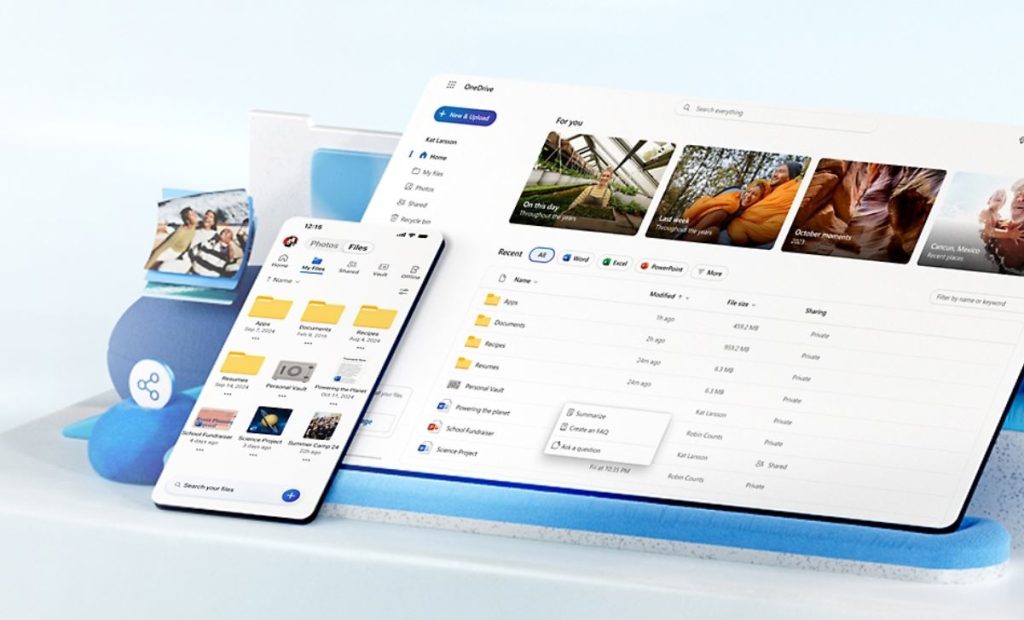
Microsoft OneDrive comes pre-installed on Windows 11 and Windows 10, appearing directly as a native directory in File Explorer. It is the premier productivity pick for users reliant on Word, Excel, and PowerPoint.
- 2026 Subscription Pricing:
- Free: 5 GB.
- Microsoft 365 Basic (100 GB): $1.99/mo or $19.99/yr (£1.99/mo).
- Microsoft 365 Personal (1 TB): $6.99/mo or $69.99/yr (£5.99/mo) — includes desktop Word, Excel, PowerPoint, and Outlook.
- Microsoft 365 Family (6 TB total / 1 TB per person up to 6 users): $9.99/mo or $99.99/yr (£7.99/mo).
- Security & Privacy: Features Personal Vault, a double-authenticated, encrypted sub-folder for critical documents like passport scans or tax files. Includes automated ransomware detection and 30-day file restoration.
- Pros: Outstanding value when bundled with Microsoft 365 apps; Windows File On-Demand saves SSD space.
- Cons: Very limited 5 GB free storage level; occasional macOS file sync latency.
3. pCloud (Swiss Privacy & Lifetime Value)
Based in Switzerland, pCloud is the top choice for privacy-minded professionals, photographers, and audio/video creators looking to escape recurring monthly subscription fees.
- 2026 Subscription Pricing:
- Free: Up to 10 GB (starts at 2–4 GB, expanded via unlock tasks).
- Annual Plans: $49.99/yr for 500 GB; $99.99/yr for 2 TB.
- Lifetime Plans (One-time payment): $199 for 500 GB; $399 for 2 TB; $1,190 for 10 TB Custom.
- Security & Privacy: Protected under strict Swiss privacy laws. Users can add pCloud Crypto ($49.99/yr or $150 lifetime) for client-side zero-knowledge encryption, ensuring no one—not even pCloud administrators—can read file contents.
- Pros: Highly cost-effective lifetime plans; integrated audio/video player with custom playlists; virtual drive client doesn’t consume local disk space.
- Cons: Client-side zero-knowledge folder requires a separate paid add-on.
4. Apple iCloud Storage (iCloud+)
iCloud Storage is built natively into iOS, iPadOS, and macOS, operating quietly in the ba ckground of every Apple device.
- 2026 Subscription Pricing:
- Free: 5 GB.
- 50 GB Plan: $0.99/mo (£0.99/mo).
- 200 GB Plan: $2.99/mo (£2.99/mo) — supports Family Sharing.
- 2 TB Plan: $9.99/mo (£8.99/mo) — includes HomeKit Secure Video support for up to unlimited security cameras.
- High-Tier Storage: 6 TB ($29.99/mo) and 12 TB ($59.99/mo) for heavy pro video creators.
- Security & Privacy: Incorporates Advanced Data Protection (ADP). When turned on, end-to-end zero-knowledge encryption expands across device backups, Photos, Notes, iCloud Drive, and Passwords.
- Pros: Flawless background synchronization on Apple hardware; private relay and email cloaking tools included.
- Cons: Web portal and Windows desktop software are basic; not optimized for Android users.
5. Backblaze & IDrive (Dedicated Cloud Backup Solutions)
When disaster strikes—such as full system drive failure or malware locking your local OS—standard cloud storage won’t restore your system files. This is where dedicated backup shines:
- Backblaze: Charges $9/month or $99/year per computer for unlimited desktop/laptop backup. It works continuously in the background, backing up documents, photos, code, and connected external hard drives. In a catastrophic failure, Backblaze can overnight a USB hard drive loaded with your data directly to your door in the US or UK.
- IDrive: Offers a hybrid approach. For $79.50/year (5 TB Personal Plan), you can back up an unlimited number of devices—Windows PCs, Macs, iPhones, iPads, and Android phones—under a single unified account.
3. How & Why to Use Cloud Services on Computers and Mobile
On Computer (Windows & Mac)
- Why use it: Desktop computers store OS configurations, complex creative project files, databases, and media libraries. A single drive crash can cause irreversible data loss.
- How to set up:
- Download the native client app (e.g., Google Drive for Desktop, OneDrive, or Backblaze).
- Enable Files On-Demand / Virtual Drive. This lets you view and open files stored in the cloud directly from File Explorer/Finder without using up your local SSD disk space.
- Map core system directories—such as
Desktop,Documents, andPictures—to auto-sync continuously.
On Mobile (Android & iOS)
- Why use it: Modern smartphone camera sensors produce high-resolution 4K video files that fill internal storage rapidly. Mobile devices are also prone to physical damage, loss, or theft.
- How to set up:
- Install the official app from the Google Play Store or Apple App Store.
- Enable Automatic Camera Upload and configure it to perform uploads over Wi-Fi only to preserve cellular data.
- Turn on Two-Factor Authentication (2FA) using an authenticator app (such as Google Authenticator) or hardware keys (e.g., YubiKey) to safeguard your cloud account.
4. Comprehensive Pros & Cons Analysis
Advantages (Pros)
- Disaster Prevention: Off-site data duplication protects against physical theft, fires, spills, and ransomware threats.
- Global Accessibility: Access, edit, and share files from anywhere in the world on any device with internet access.
- Local Storage Relief: Offload archived files, raw photos, and old backups to the cloud to free up physical space on laptops and phones.
- Seamless Collaboration: Multi-user editing on documents without generating confusing duplicate file versions (
document_v2_final.docx).
Disadvantages (Cons)
- Recurring Monthly Costs: Ongoing subscriptions add up over time (unless using lifetime models like pCloud).
- Bandwidth Dependency: Uploading multi-gigabyte video files requires stable broadband or fiber internet connections.
- Third-Party Trust: Platforms without zero-knowledge encryption can theoretically access unencrypted data or respond to legal subpoenas.
5. Strategic Recommendation for 2026
For optimal efficiency, security, and value in 2026, implement the 3-2-1 Backup Rule using a hybrid setup:
- Daily Workflow & Collaboration: Use Google Drive (Android/Google users), OneDrive (Windows/Office users), or iCloud (Apple users) for everyday documents and active sharing.
- Secure Long-Term Archiving: Use pCloud for high-volume storage without monthly subscription fees and Swiss privacy standards.
- Full System Disaster Insurance: Install Backblaze or IDrive on your desktop/laptop for automated background backup of your entire computer system.
Frequently Asked Questions (FAQs)
What is the main difference between Cloud Storage and Cloud Backup?

Cloud Storage (such as Google Drive, Microsoft OneDrive, or pCloud) acts as a live digital workspace. It dynamically syncs files across devices so you can edit, view, and share them in real time.
Cloud Backup (such as Backblaze or IDrive) operates as an automated disaster recovery tool. It runs continuously in the background to create an encrypted, point-in-time mirror of your entire computer system, operating system files, and hard drive. If your device crashes or gets infected by ransomware, cloud backup allows full system recovery.
Is Cloud Storage safe from ransomware and malware attacks?

Not entirely. Standard cloud storage platforms sync changes instantly. If a file on your local computer is encrypted by ransomware, the corrupted file will automatically sync to your cloud drive.
To protect against ransomware, choose cloud services that feature 30-day version history, ransomware rollback (like Microsoft OneDrive), or dedicated immutable cloud backup platforms (like Backblaze).
What is Zero-Knowledge Encryption, and why does it matter?
Zero-Knowledge Encryption (also known as client-side encryption) means your data is encrypted on your device before it gets sent to the cloud. Only you hold the decryption key. Even the cloud provider’s administrators, employees, or government authorities cannot decrypt or read your stored files.
Services like pCloud (with Crypto), Apple iCloud (Advanced Data Protection), and IDrive offer true zero-knowledge privacy.
Which Cloud Storage is best for personal use on Android and Windows?
For Windows and Android users, Google Drive and Microsoft OneDrive offer the best integration.
Google Drive is ideal for mobile photo backup and seamless document collaboration on Android.
Microsoft OneDrive is optimal for Windows 11 desktop integration and provides excellent value when bundled with Microsoft 365 apps (Word, Excel).
Can I use a Cloud Storage service as my only backup?
No, relying solely on one cloud storage drive violates basic data security principles. If your cloud account gets locked, hacked, or files are accidentally deleted, your data could be lost forever.
Tech experts recommend the 3-2-1 Backup Rule:
Keep 3 copies of your data (1 original, 2 backups).
Store them on 2 different types of media (e.g., local hard drive + cloud).
Keep 1 copy completely off-site in the cloud.
Is buying a Lifetime Cloud Storage plan (like pCloud) worth it?
Yes, if you want to eliminate monthly subscription fees. A lifetime plan on pCloud typically pays for itself within 3 to 4 years compared to recurring monthly subscriptions from Google One or Apple iCloud. It is ideal for users with stable long-term storage needs, such as photography archives or media collections.
How much internet speed do I need for Cloud Backup?
Initial backups can take several days depending on your hard drive size and internet upload speed. For everyday cloud sync, a broadband connection with an upload speed of 10 Mbps to 25 Mbps is sufficient. Dedicated backup apps run silently in the background without slowing down your active web browsing or streaming.

Dal Bahadur is a passionate tech enthusiast, hardware reviewer, and the founder of Phadera Tech. With years of experience in mobile technology and digital troubleshooting, he specializes in deep-dive smartphone reviews, gadget guides, and practical tech tips. His goal is to help readers make informed decisions before buying their next gadget.