

Audio & Video Calls are now officially supported on WhatsApp Web directly through your browser. Until now, making voice or video calls on a computer required downloading the dedicated WhatsApp Desktop App. With this new update, users can jump into calls seamlessly using popular Web browsers like Google Chrome, Microsoft Edge, and Safari without installing extra software.
Whether you are managing daily workflow, taking remote meetings, or simply chatting with friends, this upgrade makes WhatsApp Web a powerful, standalone communication hub.
Here is a full breakdown of the new browser calling feature, key additions like seamless call transfer, and a step-by-step guide on how to use it.
What’s New in WhatsApp Web Calling?
WhatsApp Web’s latest update brings a suite of powerful calling tools optimized for modern Web browsers:
- No App Download Required:You can make 1:1 and group audio & video calls directly from
web.whatsapp.com. - Seamless Call Transfer: Switch ongoing audio & video calls between your smartphone and WhatsApp Web effortlessly—without disconnecting or dropping the stream.
- In-Call Screen Sharing & Reactions: Share your screen during presentations and send real-time emoji reactions during your audio & video calls.
- Waiting Room Security: When joining a group call via an invite link, participants enter a virtual waiting room until the host approves their entry.
- QuickHD & Smart Noise Suppression: Automatic video rendering for crystal-clear HD quality paired with AI-backed background noise cancellation.
- End-to-End Encryption: Browser calls maintain the same industry-standard end-to-end encryption used across all WhatsApp mobile and desktop apps.
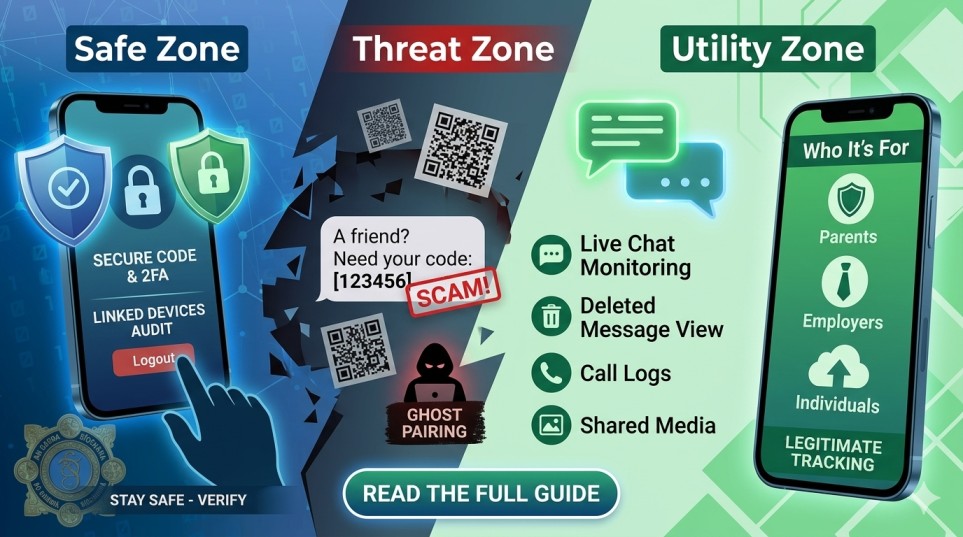
While browser calling offers great convenience, maintaining digital privacy is equally essential when using messaging platforms today. To make sure your account and personal data remain fully secure while chatting or making calls, check out our comprehensive guide on The WhatsApp Safety Surveillance Playbook: Protecting Your Privacy in 2026 for actionable privacy and security settings.
Key Feature: How Call Transfer Works
One of the standout productivity upgrades is Call Transfer. If you start audio & video calls on your mobile device while walking into the office, WhatsApp Web will automatically detect the active call on your account.
With a single tap on your desktop browser, you can seamlessly hand off the call from your mobile screen to your laptop or desktop monitor—keeping your conversation uninterrupted.
How to Make Audio and Video Calls on WhatsApp Web
Follow these simple steps to start making audio & video calls directly from your browser:
Step 1: Open and Connect WhatsApp Web
- Open your web browser (Chrome, Edge, or Safari) and navigate to
web.whatsapp.com. - Scan the QR code using the WhatsApp app on your smartphone (Settings > Linked Devices > Link a Device).
Step 2: Grant Browser Permissions
- When prompted by your browser, grant permission to access your Microphone and Camera.
- (Tip: You can also manage permissions by clicking the lock icon next to the URL bar.)
Step 3: Start a Call
- Open any individual or group chat.
- Look at the top right header of the chat window:
- Click the Phone icon for an Audio Call.
- Click the Video Camera icon for a Video Call.
Frequently Asked Questions (FAQs)
Can I make audio and video calls on WhatsApp Web without downloading any software?

You can now make 1:1 and group audio/video calls directly inside supported desktop browsers (like Chrome, Edge, and Safari) at web.whatsapp.com without installing the WhatsApp Desktop App or any extra browser extensions.
How do I switch a call from my mobile phone to WhatsApp Web?
When you have an ongoing call on your mobile phone and you open WhatsApp Web, a banner will appear offering to transfer the call. Clicking “Transfer Here” moves the call to your desktop browser instantly without disconnecting.
Which web browsers support WhatsApp Web calling?
WhatsApp Web calling is fully supported on the latest versions of major web browsers, including Google Chrome, Microsoft Edge, Mozilla Firefox, and Apple Safari. Ensure your browser is updated to the latest version for optimum performance.
Do I need to grant camera and microphone permissions for WhatsApp Web calls?
When you make or receive your first call on WhatsApp Web, your browser will ask for permission to access your microphone and camera. You must click “Allow” for the calling features to work.
Are calls on WhatsApp Web secure and encrypted?
All audio and video calls made through WhatsApp Web are fully protected by End-to-End Encryption, meaning only you and the person you are communicating with can listen to or view the call.
Can I share my screen during a WhatsApp Web video call?
WhatsApp Web supports real-time screen sharing during video calls, making it easy to present documents, slideshows, or share your screen for work and personal meetings.

Dal Bahadur is a passionate tech enthusiast, hardware reviewer, and the founder of Phadera Tech. With years of experience in mobile technology and digital troubleshooting, he specializes in deep-dive smartphone reviews, gadget guides, and practical tech tips. His goal is to help readers make informed decisions before buying their next gadget.